


Welcome to iBreastExam Support
All you need to become an expert iBreastExaminer!
Our App. Your OS!
iBreastExam is now available on both, iOS & Android Platforms


All the Guidebooks. Ready to Download.
Start saving lives!


Got more questions?

Complete Setup Instructions
Get Setup. Start Saving Lives!
Compatible Mobile Phones & Specs
iBreastExam App works on:
- iOS v16.0 and above
- Android v8.0 and above
Phone Specifications:
- Memory: 3 GB RAM | 32 GB ROM
- Display: 14.48 cm (5.5 - 5.7 inch)
- Resolution: 720 x 1440 pixels
- Battery: Minimum 3,000 mAh
- Processor: Preferred Snap Dragon
Recommended Phone Brands:
- Lenovo
- Samsung
- Redmi
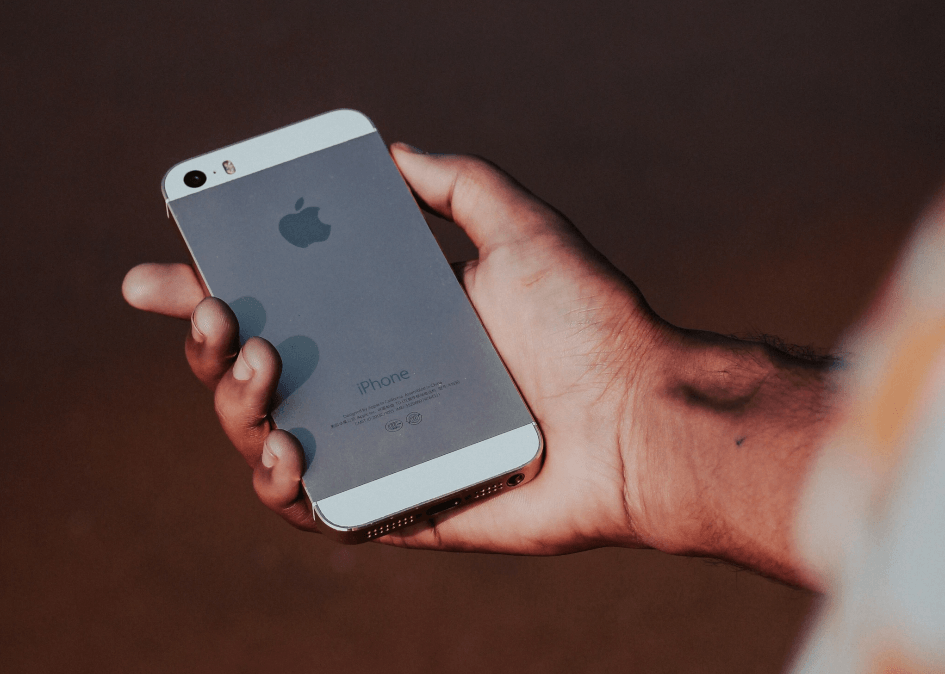
- iPhone
Create UE LifeSciences Service Desk Account
To be completed by the Organization Administrator:
- Watch the 3-minute video on how our Service Desk works.
- Create an account on the Service Desk. In case we have set up an account
for you, click on the sign-up link in the email that was sent to you (subject:
“Finish signing up to UE LifeSciences Service Desk”). - Use the Service Desk portal to request assistance for any iBreastExam related issue.
In App > Create Technician Account
Every iBreastExam Technician must create their personal account. This will kee a track of their individual scans and enable them to see their patients and reports. Each Technician Account requires a unique mobile number and/or email address.
To be completed by each Technician:
- Open the iBreastExam app on your mobile phone.
- Tap on Don’t have an account? Create one here.
- Enter your account details. Adding your mobile number is optional but highly recommended, as you cannot add it later. Select Sign up.
- If you added a mobile number, verify it with a one-time password (OTP):
- Enter your mobile number and select Send Mobile Code.
- Enter the OTP that was sent to your mobile phone and select Verify.
- Enter and confirm your own PIN code. Select Setup Pin.
- The app takes you to the main menu.
In App > Create an Org Admin Account
The organization’s administrator (different from the iBreastExam technicians) will have access to the iBreastExam Dashboard, an online repository of all patients, scans, technicians, and devices.
To be completed by the organization’s administrator (iBreastExam project lead):
- Create a technician account on the iBreastExam app (see "In App > Create Technician Account" above).
- Send a request with your name to info@uelifesciences.com and your account will be granted org admin privileges.
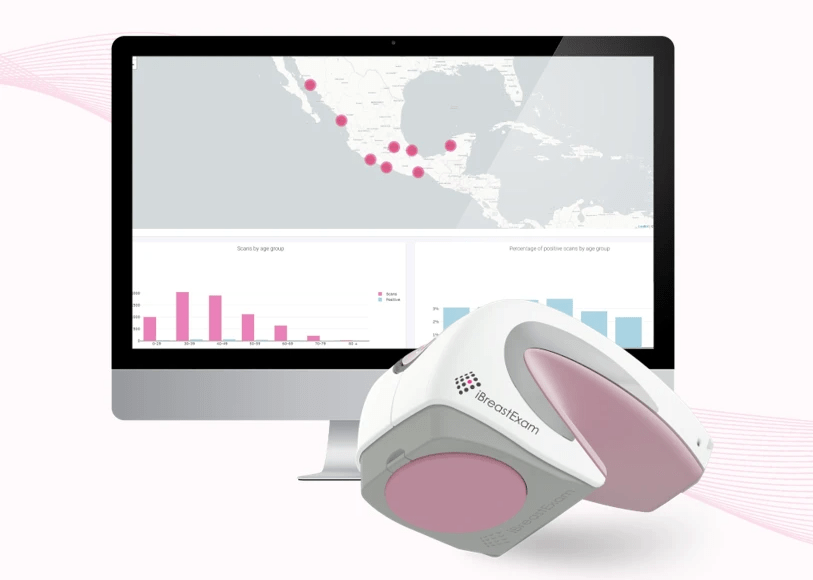
The Dashboard allows you to:
- Create and edit technicians and patients directly from the Dashboard.
- Keep track of each technician’s training and certification status.
- Replay each scan for quality control.
- Download reports and consent forms as PDFs and CSV files.
- Keep track of the positivity rate per technician and per device.
- Reset technician’s PIN or password.
In App > Company Info Setup
Each iBreastExam report lists your organization’s details and logo in the header. You can add/edit this information in the app’s settings section.
To be completed by each technician (this is optional for org admins but required in case they intend to perform scans):
- Open the iBreastExam app.
- Tap on the gear icon in the top-right corner to open the settings.
- Select Company Information and enter your organization’s details. To add your organization’s logo, please select a png or jpeg file.
- Tap on Save.
In App > Complete the iBreastExam Tutorial
Each technician must undergo Training & Certification. The first step is the theoretical Tutorial, consisting of 7 modules with short explainer videos and questions at the end of each module.
To be completed by each technician (this is optional for org admins but required in case they intend to perform scans):- Open the iBreastExam app.
- Tap on Take the Training and select Tutorial.
- Watch all the videos carefully and take the quiz at the end of each module.
- Complete all modules (which is when the progress bar will be at 50%).
- The subsequent steps (Pre-Training, Training, and Practice Scans) will be completed during and after the iBreastExam Training.
Request iBreastExam Training
To be completed by the Org Admin.
- Make sure you are logged into your account on the Service Desk.
- Request a training by clicking on the Setup & Training portal and selecting the Training Request Form or follow this link.
- Please ensure that each technician is available for this training and has completed the mandatory iBreastExam Tutorial prior to the training.
Pair the Scanner with Mobile Phone
To be completed once you receive your iBreastExam unit:
- Turn the Scanner ON.
- Open your phone’s Bluetooth settings. Click on Pair new device.
- Select the scanner’s device number.
- Enter the PIN 1234.
- The scanner is now paired with your phone.
Tip: Pair one Scanner with one mobile phone.
In App > Connect the Scanner with the App
To be completed once your iBreastExam shipment arrives:
- Turn the Scanner ON.
- Ensure the phone’s Bluetooth is turned on.
- Open the iBreastExamapp and login to your account.
- The scanner automatically connects to the app.
- Check the Connection light (below the pink or silver cover):
- Light blinking > Device is looking for a connection.
- Light stops blinking > Device is connected.
- Tap on Done in the Bluetooth Connection Status pop-up message.
Your iBreastExam setup is now complete.



Contact Us
+1 267 477 3252 (USA)
+91.22.2610.2610 (India)
+60.3.62064996 (Malaysia)
UE LifeSciences Inc. © Copyright 2023 | info@uelifesciences.com